Budget Spreadsheet for Google Sheets: Set One Up in 10 Minutes
Published October 24, 2026 · ⏱️ 3 min read · Printable Resource Guide
Download free file
A budget spreadsheet only needs three things to work: a list of categories, a monthly amount you're allowed to spend in each one, and a number you update as you spend. The free template below has exactly that — download it, make a copy in Google Sheets, and you have a working budget before your coffee gets cold.
The 10-minute setup
- Download the free spreadsheet below and open it in Google Sheets (File → Import → Upload) or directly in Excel.
- Replace the five demo categories (Rent, Groceries, Transport, Dining Out, Subscriptions) with your own — you get 10 rows to work with.
- Fill in a realistic Monthly Budget for each one. Use your last bank statement if you're not sure what's realistic; guessing too low just means you'll "go over" every month without learning anything.
- Leave "Spent So Far" at zero and update it every few days as you spend. The Remaining column does the subtraction for you.
- Once a category reliably goes negative, that's not a willpower problem — it's a sign the budget number was wrong. Raise it and take the difference from a category that's reliably under.
What the demo numbers show
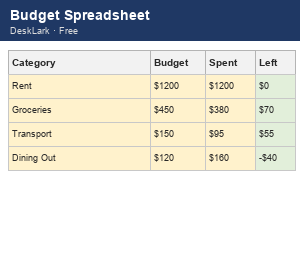
The free template ships with five pre-filled example rows so you can see the math before touching your own numbers:
- Rent: $1,200 budget, $1,200 spent → $0 remaining (right on target, which is normal for a fixed bill)
- Groceries: $450 budget, $380 spent → $70 remaining
- Transport: $150 budget, $95 spent → $55 remaining
- Dining Out: $120 budget, $160 spent → -$40 remaining (over budget — the formula shows negative numbers plainly instead of hiding them)
- Subscriptions: $40 budget, $38 spent → $2 remaining
That negative Dining Out number is deliberate — a good budget spreadsheet should make overspending obvious, not smooth it over.
Why categories beat a single "spending" number
Tracking one lump sum tells you that you spent $2,000 this month; it doesn't tell you whether that's a problem, because $1,200 of it might be rent you were always going to pay. Splitting spending into categories — needs like Rent and Groceries, wants like Dining Out and Subscriptions — is what turns "I spent $2,000" into "I'm $40 over on dining out, which I can fix next week," an action instead of a vague feeling.
When you outgrow the free template
The free version is one sheet with no history — it tells you where you stand this month, but it won't remember last month once you overwrite the numbers. If you want every transaction logged automatically (instead of hand-typing "Spent So Far"), a 12-month income/expense summary, and a dashboard that calculates your savings rate, the Personal Finance Dashboard (Google Sheets) builds on the same idea with 20 built-in categories and 150 transaction rows ready to go. A browser-app version is also available if you'd rather not touch a spreadsheet at all.
More to explore
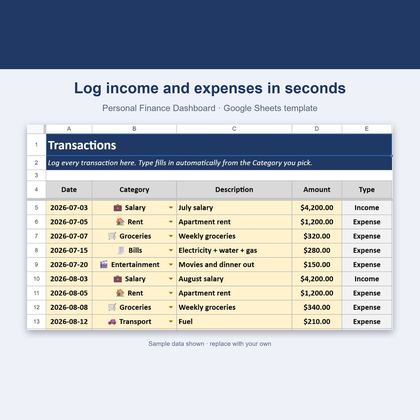
Personal Finance Dashboard — Google Sheets & Excel
Income, expenses, budgets and savings rate in one spreadsheet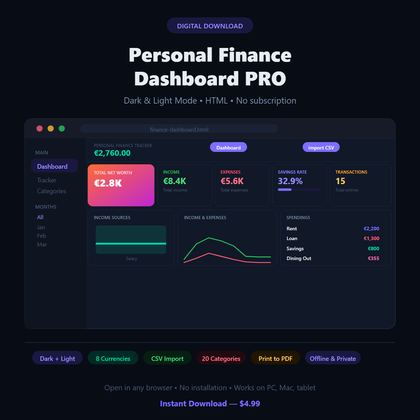
Personal Finance Dashboard — Browser App
Dark-mode budget tracker with charts, 20 categories and 8 currenciesFAQ
Do I need a Google account to use this?
Yes, to use Google Sheets (it's free to create one). The file also opens and works fully in Microsoft Excel.
What if I need more than 10 categories?
Insert extra rows above the note at the bottom and copy the Remaining formula down — it follows the same pattern (Budget minus Spent) for any row.
Should my budget numbers match what I actually spent last month?
Not necessarily — start from last month's real spending, then adjust categories you want to change on purpose (lower dining out, higher savings), rather than copying habits you're trying to fix.
Does this track more than one month?
No — the free template is a single snapshot you update as the month goes. The full Personal Finance Dashboard adds a 12-month summary so you can compare months over time.
What's the difference between this and a budgeting app?
A spreadsheet is a one-time file you own and can edit freely, with no account required beyond your own Google or Microsoft login — most budgeting apps charge a recurring subscription instead.